
Using custom properties, you can define extra bits of data to associate with events in your timeline. For example:
- A project timeline might store the person assigned to each task, its percentage complete, and its ID in a separate project-tracking tool
- A historical research project capture each event’s geographical location and a source citation
- A plan for a nonfiction book might assign each event to a chapter number
Defining Properties
To set up or change your custom property definitions, choose from the main menu to bring up the Custom Event Properties sheet.
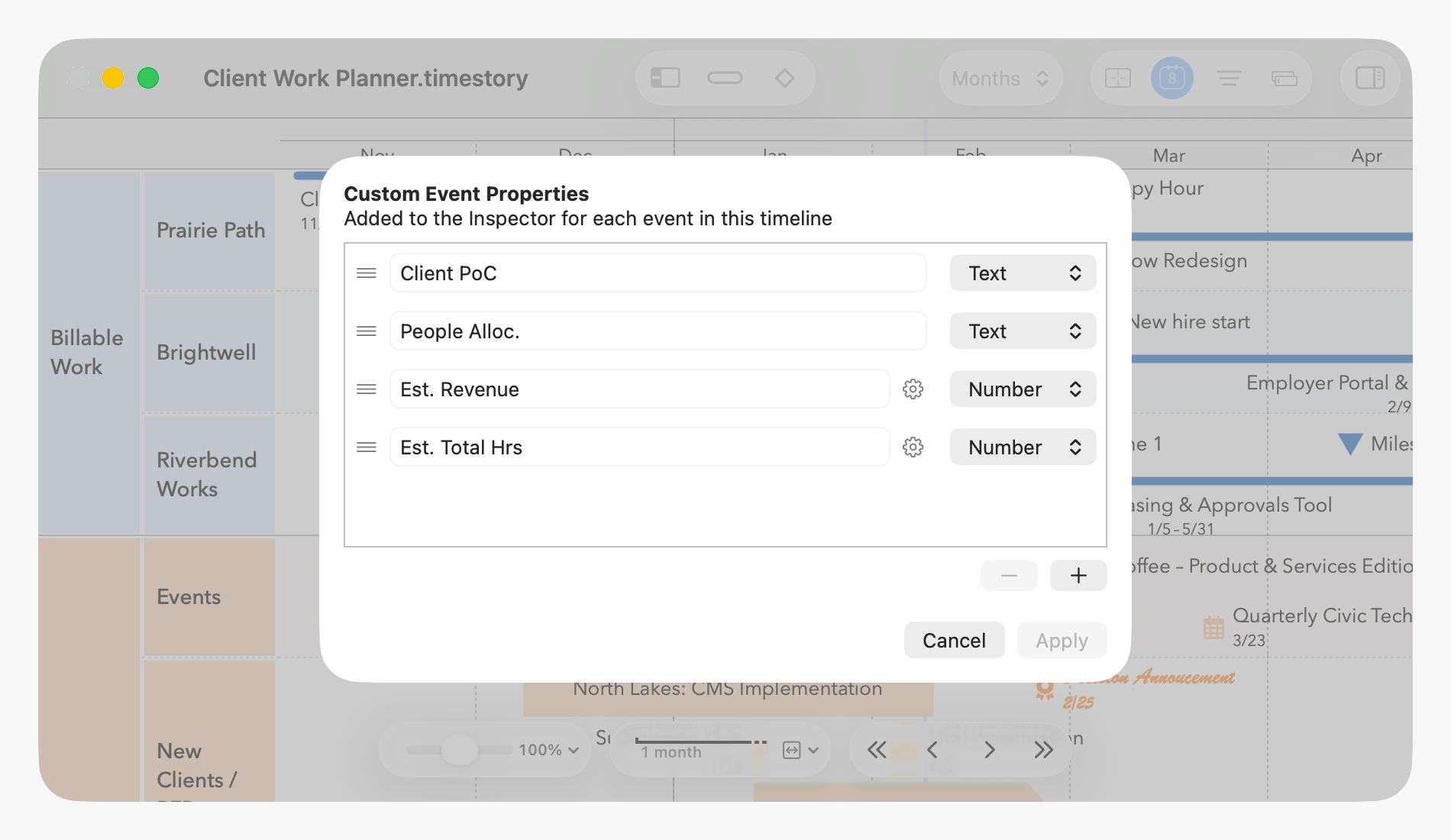
Click the + button to add a property or the – button to remove one. Click on a name to edit it; you can’t have any empty or duplicate names. Rearrange the properties by dragging them up or down (the three-line “grip” on the left side provides an easy place to grab them).
Each property can contain either “Text” or a “Number”. If you choose Number, the gear icon appears next to it; click there to set a minimum, maximum, and how many digits after the decimal point you want. (By default, number properties have no minimum or maximum, and don’t allow any fractional digits, only integers.)
As you edit, a summary of your changes will appear in the lower left corner of the dialog. Click on that summary to pop up a detailed description of your unapplied changes.
When you click Apply, your timeline gets updated; note that this may involve updating existing properties. For example, if you set a minimum on a number property, any existing numbers below that minimum will be updated. If you change a text property to a number property, any existing text values which aren’t already numeric will be cleared out. If needed, you can use to revert any property change.
Editing Property Values
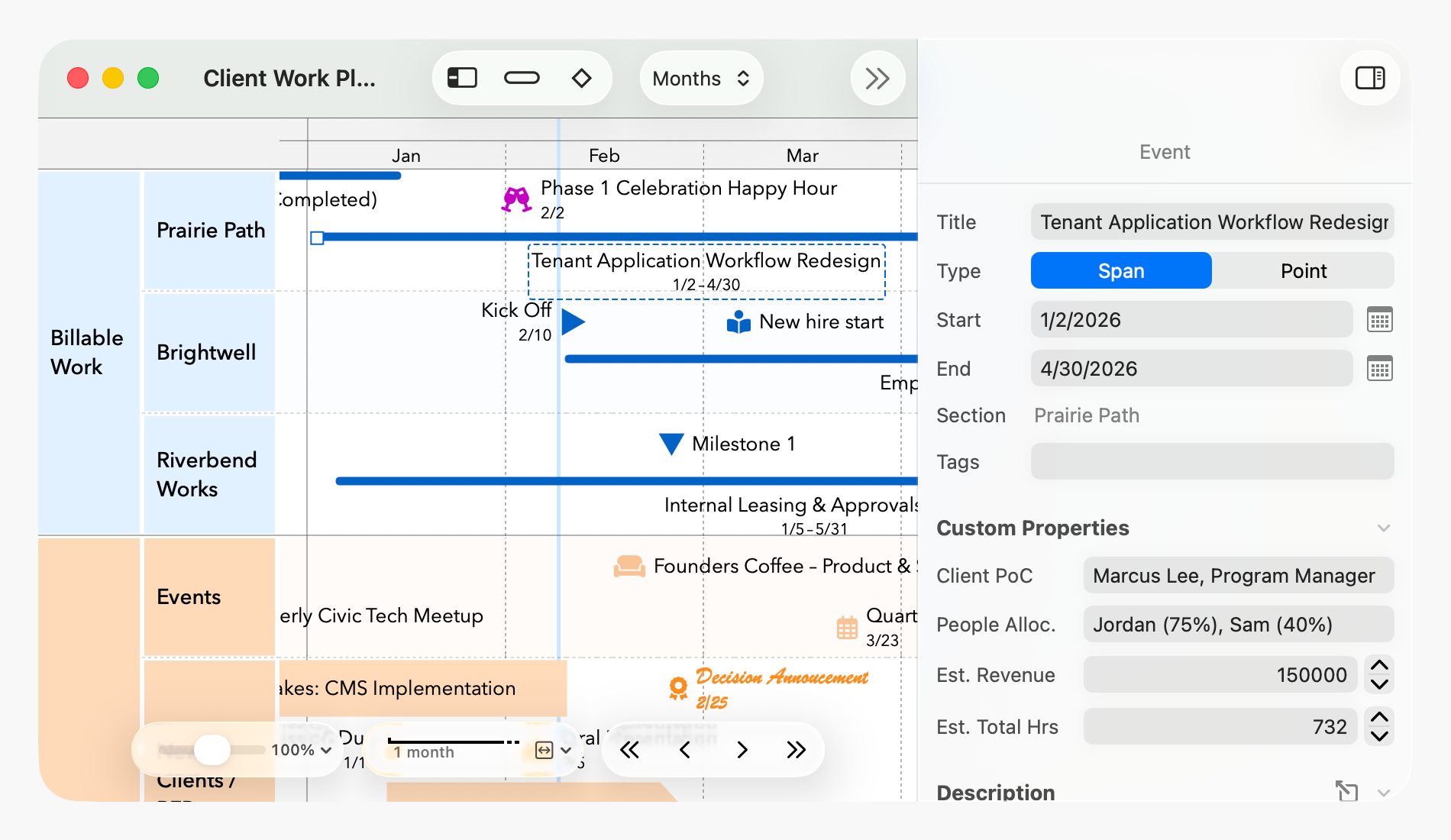
Once defined, custom properties appear in the Inspector when you select one or more events. These properties work just like the rest of the Inspector; you can edit them one at a time or select multiple events to edit them together.
Using Custom Properties in Filters
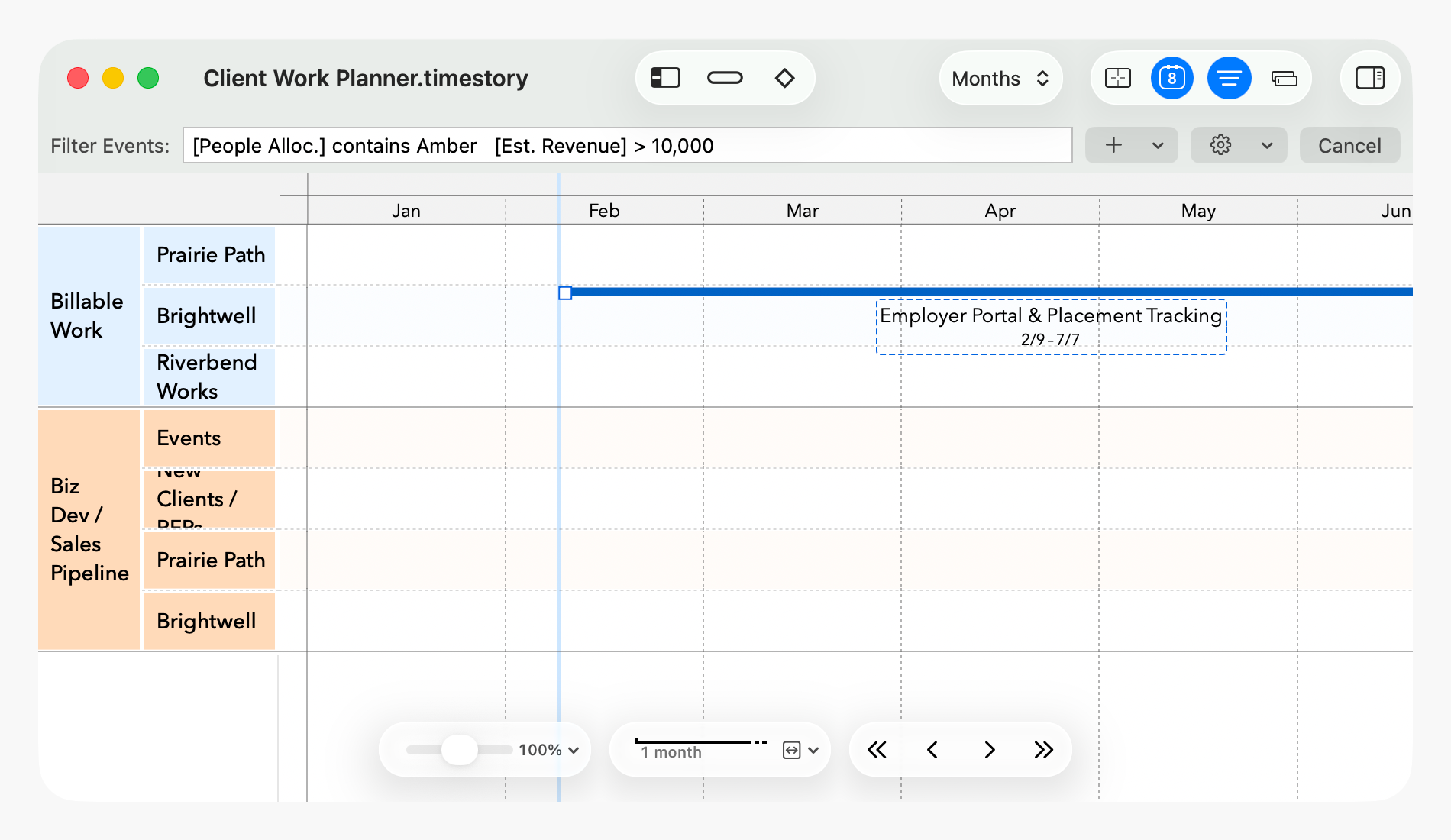
Using the Event Filter, you can select only events which fit certain custom property requirements. This can be a powerful way to explore timelines or extract subsets of your timeline based on specific criteria.
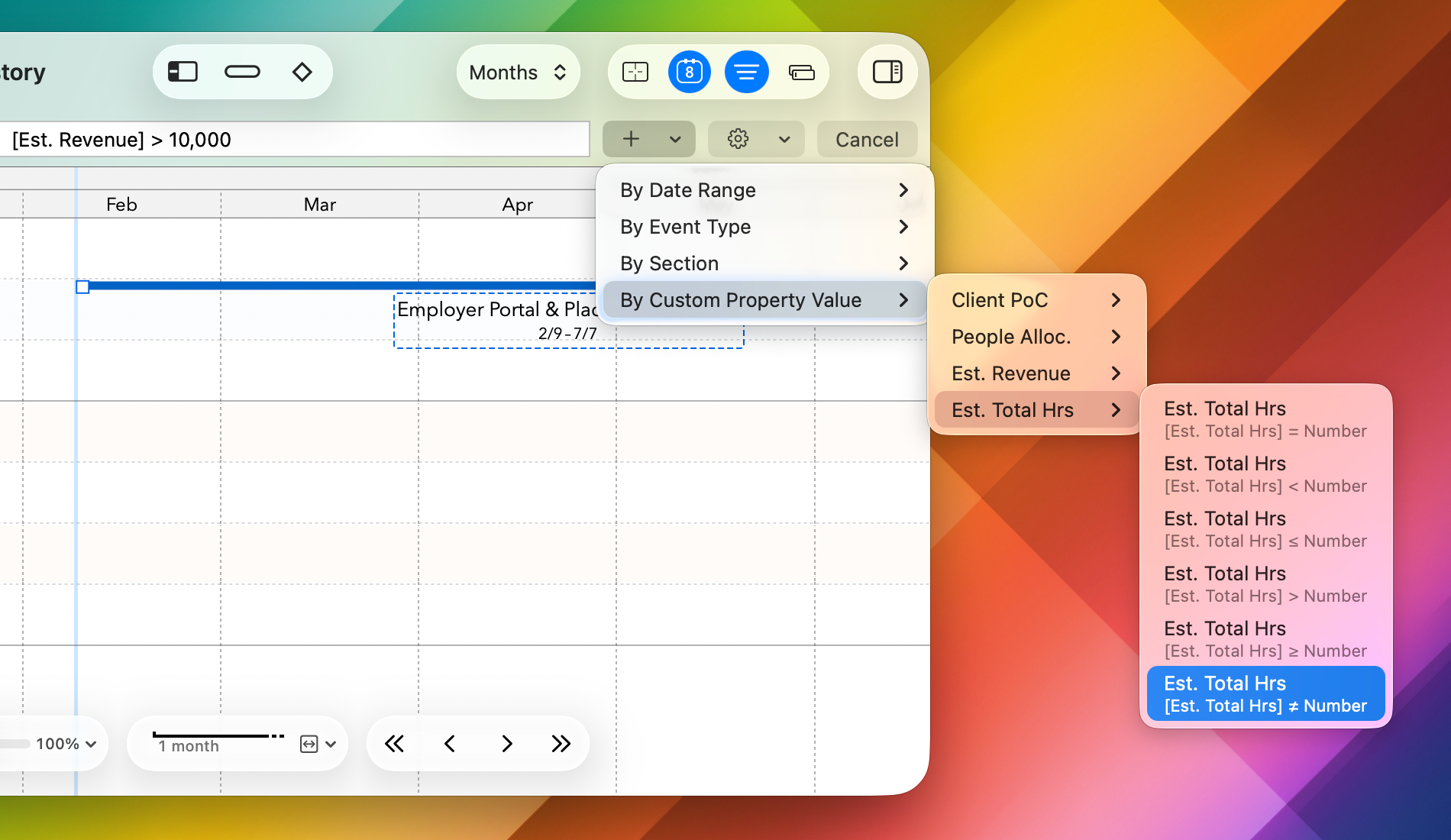
While custom property filters are powerful, they can be cumbersome to type, so there’s a pop-up menu listing the available properties and providing for automatic entry.
See Filtering for full details.
Using Custom Properties in CSV Imports and Exports
Custom properties can be included in exported CSV files or read from imported CSV files, just like any other properties.
When collecting event details from, or sharing event details with, other people or apps, this means you can carry along any additional information you need or want to keep together. When this information includes a unique identifier, this unlocks powerful workflows where events can be edited in both TimeStory and externally in another app and updated back and forth.
See Importing and Exporting CSV Files for full details.