
TimeStory can import events from, and write events to, comma-separated value (CSV) files. These plain-text files can be created, viewed, and edited by spreadsheets, text editors, and other apps, and can also be imported and exported by many project-management and calendar tools.
Importing from CSV
CSV Import adds events, and possibly sections, to an existing document. Start by either creating a new, empty document, or by opening a document to which you want to add the new content. Then, either drag your CSV file from Finder into the timeline window, or use to choose your CSV file. Once a file has been loaded, you’ll see the CSV Import dialog.
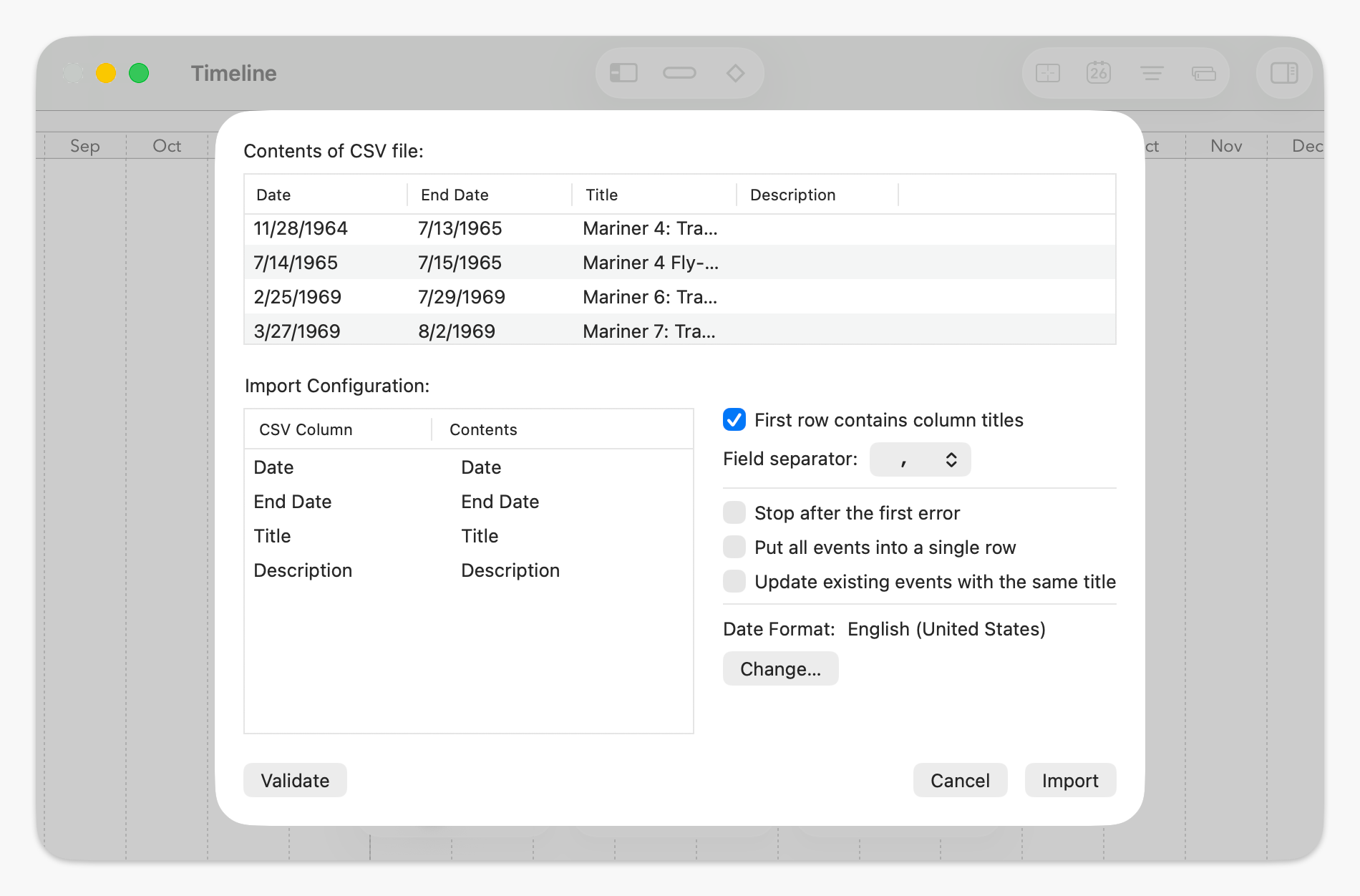
At the top of this dialog, you’ll see a preview of up to 100 rows of data from the file; below that are the settings to use to do the import. The preview will automatically update as you change those settings.
TimeStory will attempt to automatically detect the correct configuration from the contents of the file. If the file came from a TimeStory export, then this detection should normally be perfect, and you just have to click the Import button. For other sources, TimeStory will automatically detect the basics, but you’ll often need to make some changes.
- The field separator is the character used to delimit fields in the input file. TimeStory allows both comma and tab characters, which are both commonly used.
- First row contains column titles tells TimeStory that the first row of the CSV contains column titles, not a valid event.
- Stop after the first error causes TimeStory to fail to import if there are any rows of data it can’t import. Use this if you want all or nothing; normally, it tries to import everything it can, and tell you about what it couldn’t.
- Put all events in a single row does what it says. Normally, each event goes into its own row. Note that if your import includes section titles, this really means all events in a single row per section.
- Update events matching treats this CSV file as an update to your document; see below for details.
- Date Format lets you request a specific language and regional date format for reading dates. By default, it uses your current system settings; the screenshot above was taken on my Mac, hence US. Note that TimeStory also always recognizes dates of the form YYYY-MM-DD, regardless of your settings, as those are commonly produced by other programs and are fairly universal.
Finally, for each column in the CSV, you can choose where it goes: the event title, description, tag list, color, shape, and so on. Some fields have variations; for example, the end date can be inclusive (the last day of the event) or exclusive (the day after the last day of the event), and the section title can be just the immediate containing section or the sequence of section/subsection titles in a more complex document.
Any custom properties you’ve defined for this document will also appear as options. (For number properties, the import will automatically apply minimum or maximum values if you’ve set them, and will empty out any values which aren’t numbers.)
Updating Existing Events
You may sometimes need to use a CSV file to update the events in your timeline, rather than just add to them. This lets you use something like a spreadsheet to collect updated dates, descriptions, or other properties for an existing timeline, making it easier to collaborate with others who don’t have TimeStory themselves.
To perform an updating import, choose a column in the “Update events matching” setting in the CSV Import sheet. This tells the importer how to match up rows in the CSV file with existing events. This setting is automatically populated from your current set of import columns; only these column types are allowed:
- Title: titles are matched case-insensitively.
- Any custom properties you’ve defined: text properties are matched case-insensitively, number properties are matched according to their specified precision (i.e. if you specified one digit after the decimal point, then 4.5 and 4.51 will match).
- TimeStory ID: This must match exactly, including letter case. If TimeStory ID is a column in your import, this option will be pre-selected and cannot be changed; you are not allowed to import TimeStory IDs into your document except when using them to match for updates. This should normally only be used when the CSV file started in TimeStory and was exported and edited for re-insertion.
During the import, whenever a row is found with no value in that column, or when the column value does not match an existing event, that row is treated as new and added to your timeline. (Note that an unmatched TimeStory ID will be replaced by a new ID; TimeStory ID values can only be set by the app, not by inputs.)
Validating the Import Configuration
You can press the Validate button to ask TimeStory to attempt to read the entire CSV according to your current settings, without importing anything yet. It will tell you how many valid events it found, and let you view any errors or unrecognized fields.
Performing the Import
When you’re ready, press Import. The events will be imported and added to your document, and they will all be selected, so that you can easily adjust styling or position.
TimeStory can import quite large CSV files, containing tens of thousands of events. A large import or validation may take several seconds; as it runs, the dialog will continue to update the number of events found and the number of unusable rows it had to skip, and you can choose to stop at any time.
You can undo and redo a CSV import, just like any other document editing action.
Exporting to CSV
To export a document, choose . This brings up the CSV Export dialog, which shares many options with the Import dialog.
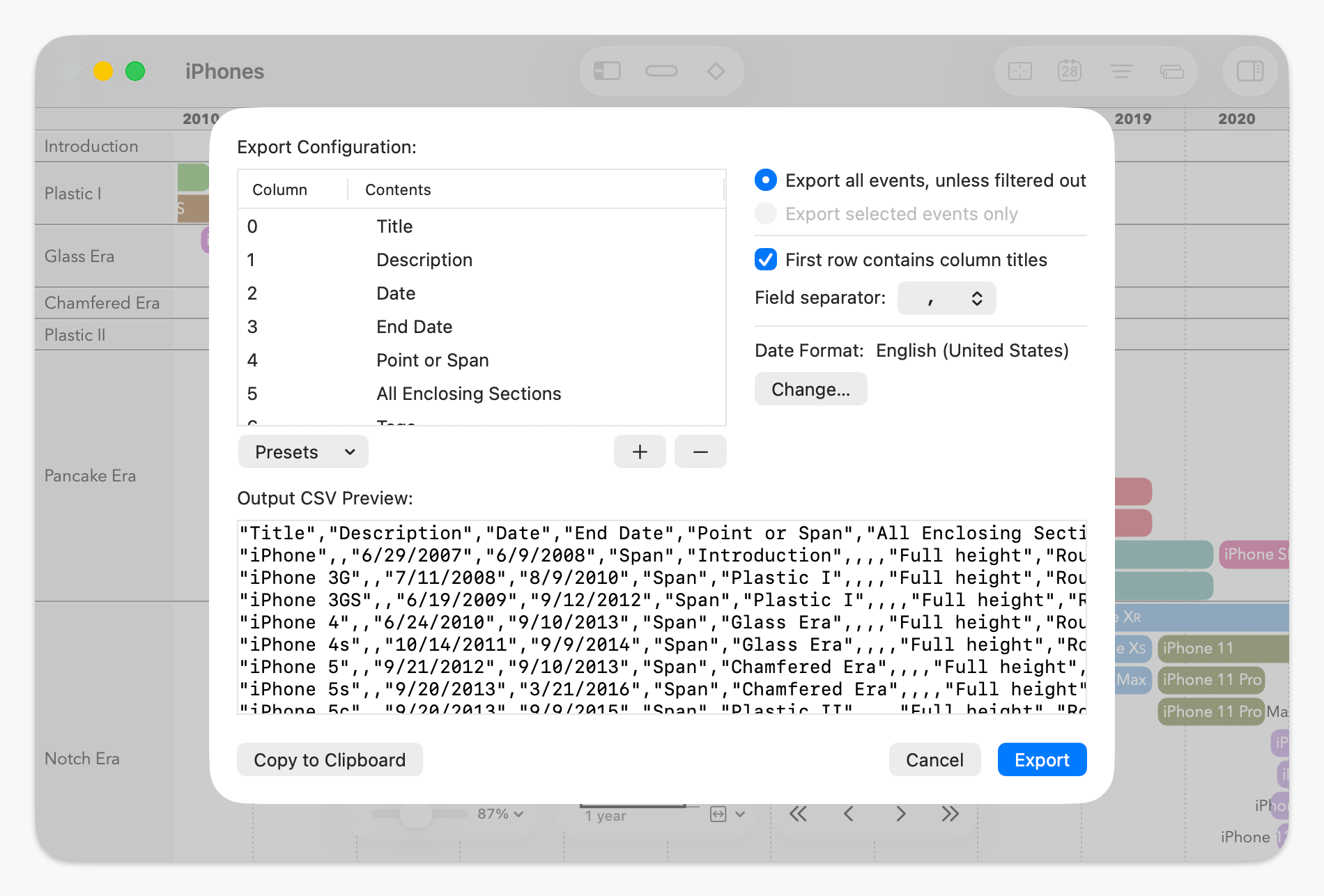
The main difference here is that you can add or remove columns. The set of available column types exactly matches those on the import dialog, with the same meaning.
Click Export to choose a file to save the output to, or click Copy to Clipboard to copy the data to the clipboard if you want to paste it into another editor, app, or spreadsheet.
If you make any changes to the configuration before exporting, those changes will be remembered the next time you open the Export dialog for the same document.
TimeStory ID Columns
In both import and export dialogs, one of the available column types is called “TimeStory ID”. This is an internal identifier, unique within the document, assigned by TimeStory to each event. Once created, an event’s ID never changes, no matter what other edits you do. You cannot choose an event’s ID. (When importing a new event from a CSV file, if that row contains an unknown ID, TimeStory ignores it and creates its own new identifier.)
If you need to use an ID that you choose, or that some other app or system chooses, create a custom property and put it in there. You can include any custom property in an export, and use any custom property for an updating import.
This lets you export events to CSV, including the TimeStory ID as a column, and then later re-import that same CSV file to update those same events with any changes to dates, titles, or any other field. You generally shouldn’t use this field for any other purpose.
(TimeStory event IDs normally contain an “E” followed by one or more digits, for example “E1234”, but you should not depend on this! Older versions of TimeStory used different IDs internally, so an older document’s event IDs may start with prefixes like “fe” and “ie”. Do not try to parse or interpret the meaning of these IDs.)
Complete CSV Column Reference
Text columns
Text in a CSV file can’t directly contain font information, styles, or links. During export, an event’s title is stripped of any formatting and links and written as plain text. During import, a title will use the font from its default event style, and a description will use the standard description font.
- Title
-
The event’s title, as shown on the timeline. During import, if this event already exists, the text preserves the current font in the timeline; if new, it uses the default font for its event type.
- Description
-
The event’s description.
-
Tags for the event, separated by commas. You can also have spaces around these commas; for example, tagone, tagtwo.
When importing, you can use multiple Tags columns, and they are combined into the event.
Date and duration columns
During export, dates are written using your system’s local format, and always include year, month, and day, plus your local version of “BC” if applicable. Year numbers are not padded (i.e., year 100 is just 100, not 0100).
During import, dates are accepted in any format that TimeStory accepts in input fields. This includes many localized formats. Notably, it accepts the default format used by Excel exports, and it accepts as a universal format YYYY-MM-DD regardless of your system settings.
- Date
-
The date of a point event or the start date of a span event.
- End Date
-
The last day of a span event (the inclusive end date), or empty for a point event.
An import can’t contain both End Date and Day After End.
- Day After End
-
The day after the last day of a span event (the exclusive end date), or empty for a point event.
An import can’t contain both End Date and Day After End.
- Point or Span
-
Set to Point or Span on export. On import, if this is Point, the End Date column is ignored, and the event is added as a point event. If this is Span, and the End Date is missing, a one-day span event is created.
Section columns
In CSV files, sections are identified by name. You don’t import or export sections themselves; rather, you import or export events, and those events reference their enclosing sections if needed.
For example, if you have a CSV file of upcoming meetings, and one of the columns holds each meeting’s location, you can set that column as “Enclosing Section” during import, and all your meeting events will be organized into automatically-created sections by location.
During import, each event with a section column is matched up against an existing section with the given name. If the named section is found, it must not contain any subsections; you can’t mix subsections and events in the same enclosing section. If no section is found with the given name, one is created.
- Enclosing Section
-
The name of the section or subsection which directly contains this event.
- All Enclosing Sections
-
The titles of all enclosing sections, from outermost to innermost, if any. In cases of nested sections, the titles are joined by the → character.
Color columns
Colors may be represented in a few different ways:
- As a 6- or 3-digit hex color code starting with #, as in CSS, such as #EAEBEC.
- For event title color, as the special word “auto”, meaning automatic, where the app chooses between white and black to maximize contrast with what’s behind the title. This is the normal default value for title colors.
- As one of the standard CSS color names, like Red, Azure, or Alice Blue. TimeStory ignores spaces, hyphens, and letter case, so Alice Blue and aliceblue are treated the same on import.
- On a Mac, as one of the standard color names found in the system color picker, such as Licorice, Eggplant, or Blueberry. These names may vary depending on your system language. Not available on iOS, which uses a different system color picker.
- Graphic Color
-
The color of the bar (for a span event) or the icon (for a point event). For point events, a blank value means that the icon is displayed in its original colors.
- Text Color
-
The color of the event’s title, or auto for automatic.
- Date Range Highlight Color
-
Background date-range highlight color.
Event title style
- Title Position
-
Where to show the event’s title, relative to its graphic
Accepted Values
- Before
- The text is placed before the event’s graphic, right-aligned to its left edge
- After
- The text is placed after the event’s graphic, left-aligned to its right edge
- Left
- The text is left-aligned to the left edge of the event’s bar (for a span event only)
- Center
- The text is centered within the event’s bar (for a span event only)
- Right
- The text is right-aligned to the right edge of the event’s bar (for a span event only)
- Hidden
- The event’s title is hidden on the timeline (but still stored with the event and visible in the Inspector and Details views)
- Date Labeling
-
The automatic date label, if any, added to this event’s title text.
Accepted Values
- none
- No date label
- ymd
- Local date format containing year, month, and day
- ym
- Local date format containing only year and month
- y
- Local date format containing only the year
- md
- Local date format containing only month and day
Span event style
Span events are drawn as horizontal bars or lines on the timeline, representing the date range of each event. For full-height bars, there are a range of shapes available to mark the starting and ending edge of the bar.
For a point event, these columns will be blank on export and ignored on import.
- Bar Type
-
The kind of bar to draw for this event: a “full height” bar, tall enough to contain text and filling its row, with configurable shapes at the start and end, or a “thin line” bar, drawn as a line above or below its text.
Accepted Values
- Full height
- A bar filling its entire row height, able to contain text and to have bar shapes set at its start and end
- Line above
- A thin line at the top of its row; text goes below it
- Line below
- A thin line at the bottom of its row; text goes above it
- Start Shape
- End Shape
-
The shape of the left or right edge of a span event, if its Bar Type is Full Height. Ignored if its Bar Type is one of the thin line styles.
Accepted Values
- Square Corners
- Vertical end, sharp corners
- Rounded Corners
- Vertical end, rounded corners
- Round
- A completely round end
- Pointed
- An arrow-like pointed end
- Pointed Inward
- An inward-pointing end which fits snugly with a neighboring Pointed end
- Angled Left
- Sharp corners and a leftward sloping end
- Angled Right
- Sharp corners and a rightward sloping end
- Jagged
- A zigzag end, like a tear, which fits snugly with another neighboring jagged end
Point event icon
A point event marks a single date with an icon on the timeline. These columns configure that icon; they’re ignored on span events.
- Point-Event Icon
-
This is the name of the icon. These icon names are visible in the Point Event Icons window in the app. There are a number of built-in icon choices, and you can add icons or icon packs to extend this set.
(A CSV import can’t add new icons, only name icons already known to the app.)
- Icon Height
-
For a point event, the height of its icon. Leave blank, or use 0, to use the standard height from the document.
Special columns
These columns exist to allow you to work with CSV files from other tools or spreadsheets which may contain columns that don’t map to anything in TimeStory.
- TimeStory ID
-
The event’s internal unique identifier, generated by TimeStory.
When used in an import, automatically turns on incremental import mode; rows will update existing events with the same ID value.
- Empty
-
A column which is always empty. TimeStory won’t put anything there. (Export only)
- Skip
-
A column to ignore while importing; it contains text that isn’t needed for your timeline. (Import only)